Uploading And Building Apps
Overview
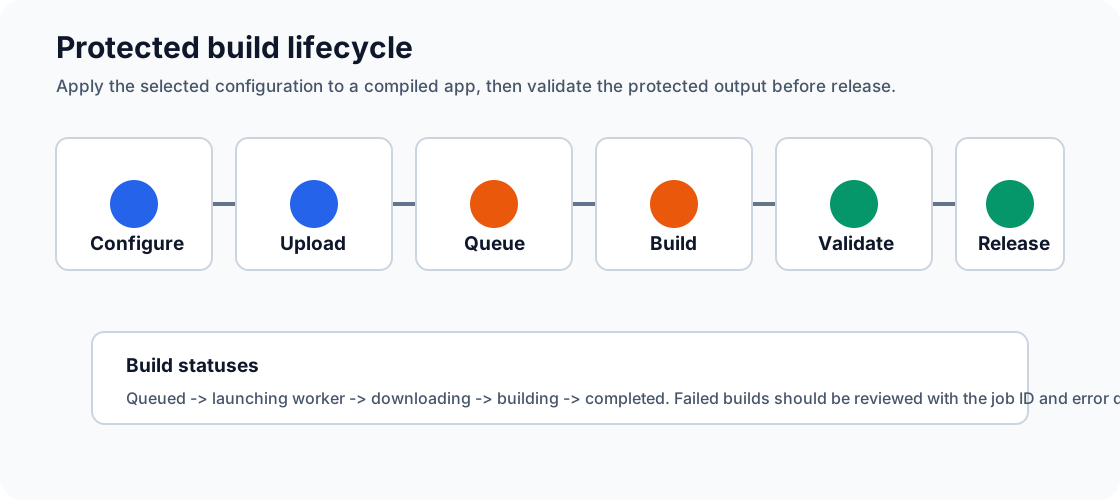
Application Builds is where a compiled mobile app becomes a protected release candidate. Upload an APK, AAB, or IPA, choose the configuration version to apply (Production, Staging or Development), follow build progress, then download the protected output for QA or distribution.
Standard building using the platform works with compiled artifacts, so source code access is not required. Your team can use the same workflow manually in the portal or automatically through CI/CD and the Automation API.
Depending on your tenant tier, you may also configure your signing keys to automatically sign your application.
Before You Upload
| Check | Why it matters |
|---|---|
| File format | AppTego accepts Android .apk and .aab files and iOS .ipa files. |
| Configuration version | Development, Staging, and Production can contain different controls and response actions. |
| Signing approach | Temporary test signing is useful for QA; production releases should use your own signing identity. |
| Device target | Build settings such as simulator or x86 support should match where you plan to test. |
| Release notes | Keep the AppTego build job ID with your internal release record for support and auditability. |
If you have configured signing, it will form part of the build phase
Supported File Types
| Platform | File Types | Maximum Size |
|---|---|---|
| Android | .apk, .aab | Large files supported via multipart upload |
| iOS | .ipa | Large files supported via multipart upload |
File size limits are inline with those accepted by the Google Play store and Apple App Store.
Upload An App
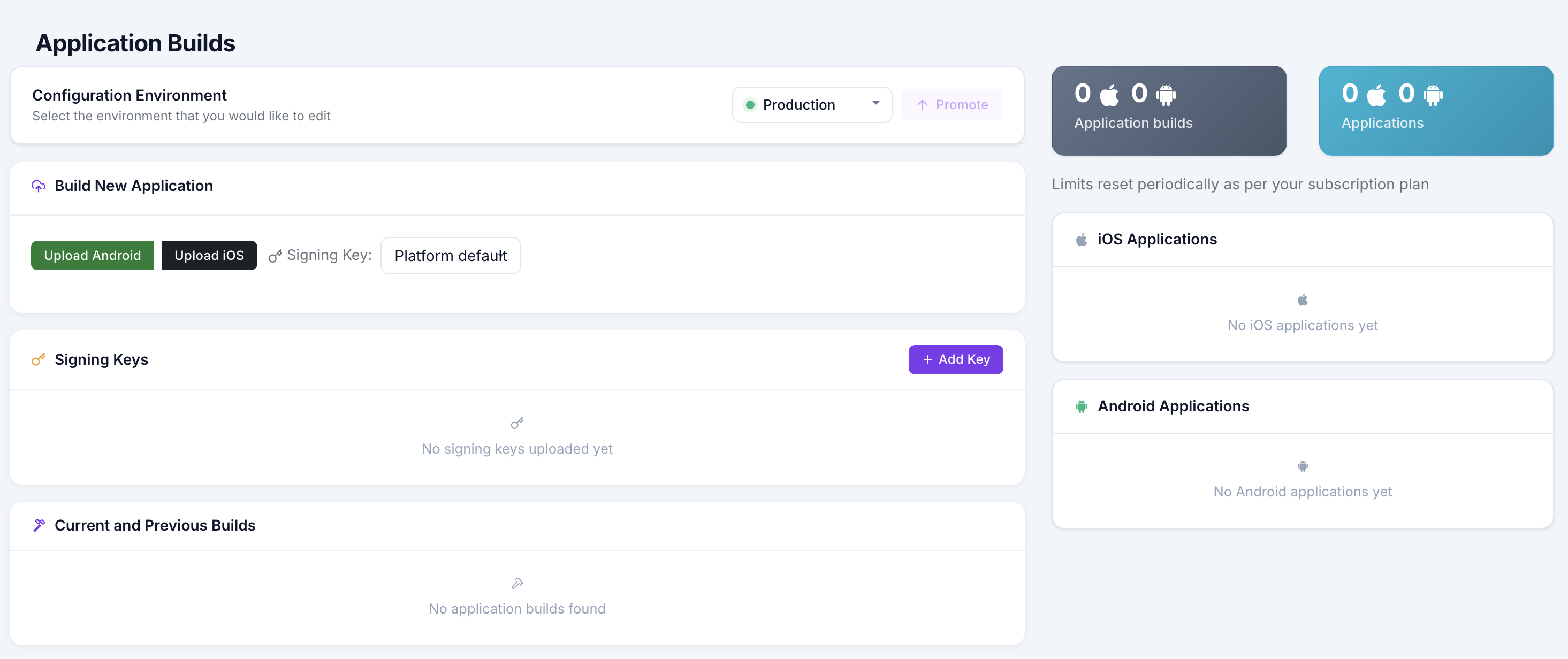
- Open Application Builds in the sidebar.
- Click Upload.
- Select the platform: Android or iOS.
- Select the configuration version: Development, Staging, or Production.
- Choose the app file from your computer.
- Select a signing key if one should be used for this build.
- Click Upload to start the build.
Build Status
After upload, the build list shows the current stage. Progress updates automatically.
| Status | Meaning | Next step |
|---|---|---|
| Queued | Upload received and waiting for build capacity. | No action needed. |
| Launching worker | A protected-build environment is starting. | No action needed. |
| Downloading | Build inputs are being retrieved. | No action needed. |
| Building | Protection, packaging, and signing steps are running. | Wait for completion. |
| Completed | Build succeeded and is ready to download. | Download and validate the app. |
| Failed | Build could not complete. | Review the error message and see Troubleshooting. |
If a build takes longer than expected, keep the job open and note the build details before contacting support.
Download Protected Apps
- Find the completed build in the build list.
- Click the Download button.
- AppTego generates a time-limited signed download URL.
- Save the protected app with your release or QA artifacts.
Download URLs expire after a short period for security. If a link expires, return to the build and download again.
Build History And Retention
- The build list shows recent protected builds, statuses, platforms, and environments.
- Older builds may be automatically removed according to tenant retention limits.
- You can delete builds manually when you no longer need them.
Build Limits
Concurrent build limits depend on your plan:
| Plan | Concurrent Builds | Maximum Per App Per Week |
|---|---|---|
| Free | 1 | 2 |
| Team | 2 | From 10 |
| Enterprise | 5 | Up to Unlimited |
Unique Application Limits
| Plan | Maximum Unqiue Apps |
|---|---|
| Free | 1 |
| Team | From 3 |
| Enterprise | Up to Unlimited |
If you exceed any of the limits, you will need to wait for the limits to reset as per your plan.
Code Signing
Temporary Test Signing
If you do not select a custom signing key, AppTego will produce an installable test build using a temporary signing identity generated for that build. This is useful for QA, smoke testing, and device validation when you are not ready to use production signing material.
Temporary test signing is not intended for app store distribution. For production releases, upload and select your own signing key so the protected app uses the same trusted identity as your normal release pipeline.
Custom Signing Keys (Team+)
Upload A Signing Key
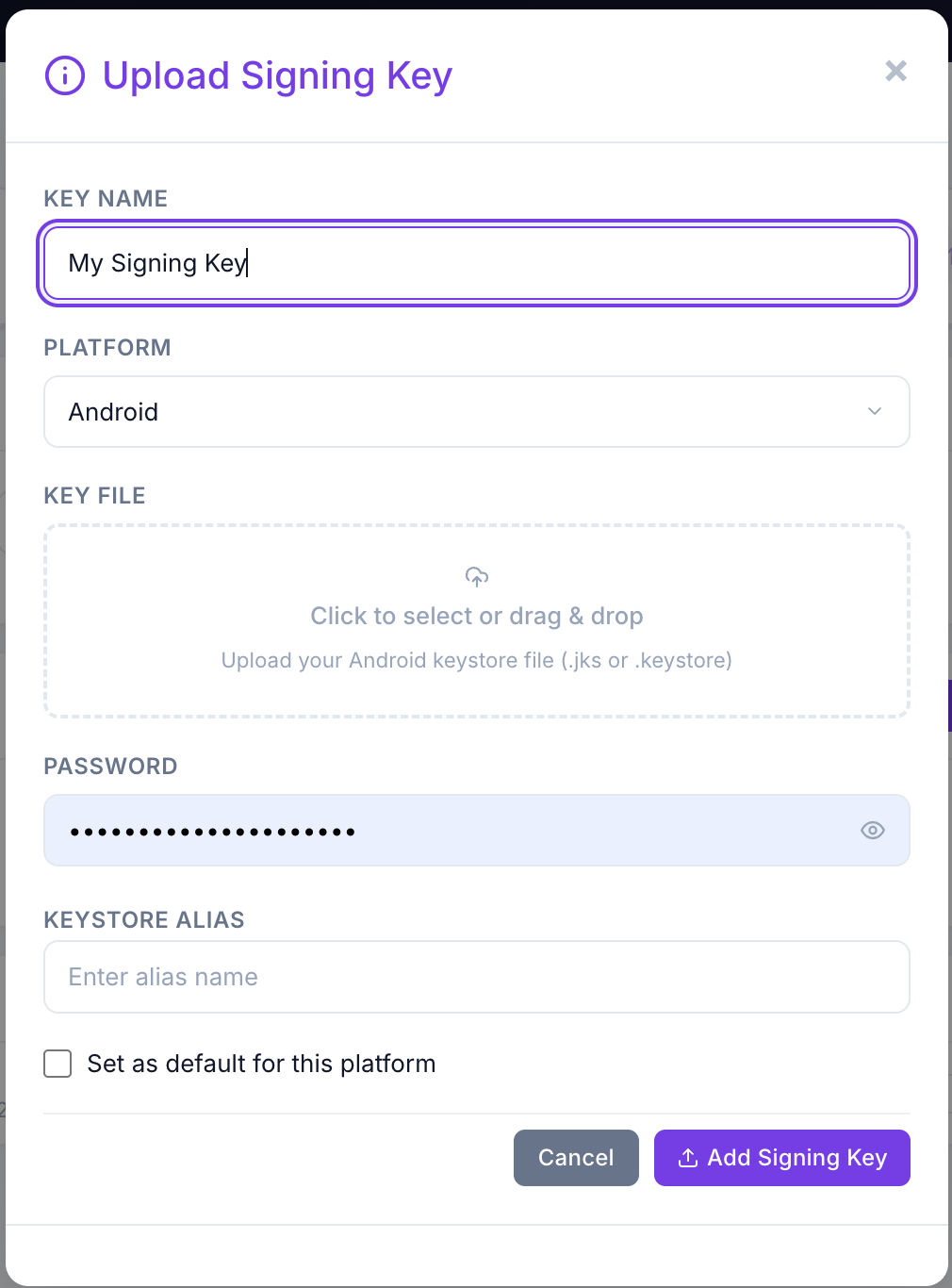
- Open Application Builds.
- Click Add Key in the Signing Keys panel.
- Select Android or iOS.
- Upload the signing material.
- Provide required metadata such as passwords, alias, provisioning details, or certificate information.
Use A Signing Key
- Select the signing key during upload, or set a default signing key per platform.
- Confirm the key matches the app, distribution channel, and installation target.
- Validate the protected app with the same installation path you plan to use for release.
Manage Signing Keys
- View uploaded keys from the Signing Keys panel.
- Delete keys that are no longer needed.
- Rotate production signing material according to your organization policy.
AAB Support (Android)
If you upload an Android App Bundle (.aab), AppTego protects the bundle workflow and provides outputs suitable for release validation. A universal test APK may also be available so QA can install the protected build directly before store submission.
Build Settings
The Settings -> Build Settings panel controls architecture support for protected outputs. Both options are off by default. Enable them only when your QA or CI workflow specifically needs emulator or simulator installation.
| Setting | Platform | Default | What it does |
|---|---|---|---|
| Include x86 Architectures | Android | Off | Keeps the x86 and x86_64 native libraries in the protected APK / AAB and ships the security module for those ABIs. Required for installs on Android emulators, Chromebooks, and x86 Android devices. When off, x86 slices are stripped to reduce binary size. |
| Include Simulator Architectures | iOS | Off | Builds with the simulator variant of the MobileDefender framework so the protected IPA can run in the iOS Simulator. Required for QA / CI pipelines that test on simulators. When off, only the device (arm64) slice is included. |
Build Setting Notes
- Both toggles require an Enterprise subscription. The panel is hidden for Free and Team tenants.
- Simulator-compatible builds are for testing only. Always ship a device build to end users.
- Build setting changes affect future builds only. Existing builds are not reprocessed.
Custom Library (Enterprise — BYOA)
Depending on your plan, tenants can generate a standalone MobileDefender library for manual integration into app source code:
- Navigate to Custom Library in the Application Builds page.
- Configure the app identifier for the app the library will be used with.
- Click Generate.
- Download the AAR or iOS Framework when the build completes.
This is useful for apps that require manual SDK integration rather than automatic injection and allows for further customisation. For more details, see: SDK Integration - Library Mode